

Use the Settings menu in EKO Q to manage your user profile, account information, company details, password, and external data service access.
The available settings may depend on your user role and account permissions.
Open the Settings menu
After logging in to EKO Q, go to the left-side menu and select Settings.
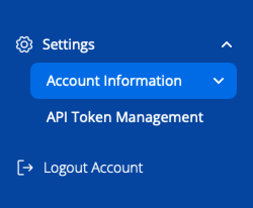
From the Settings menu, you can access the following sections:
Account Information
API Token Management
Logout Account
Account Information
The Account Information section contains the main settings related to your EKO Q user account and workspace.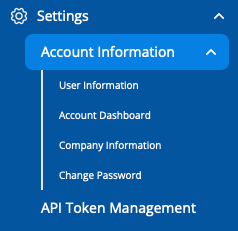
When you open Account Information, you will see the following pages:
User Information
Account Dashboard
Company Information
Password
User Information
Use User Information to review and update your personal user details in EKO Q.
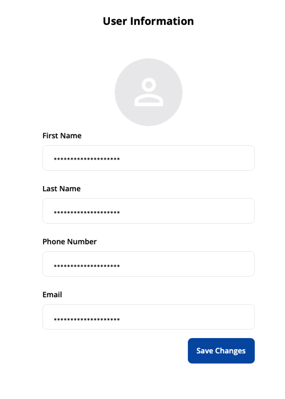
This section is used for information related to your individual account, such as your user profile details.
After making changes, make sure to save them before leaving the page.
Account Dashboard
Use the Account Dashboard to view key information about your EKO Q account.
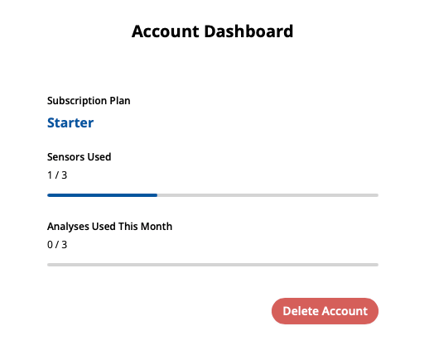
This page include account-level details such as your workspace status, available features, or account-related information depending on your subscription and permissions.
Company Information
Use Company Information to review or update the company details connected to your EKO Q workspace.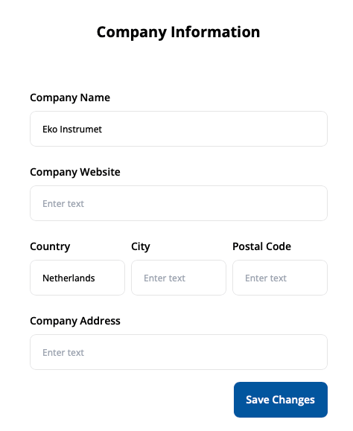
This section is useful when your company name or account-related company information needs to be checked or updated.
Depending on your permissions, some fields may not be editable. If you cannot change the company information, contact your EKO Q administrator or EKO support.
Password
Use the Password section to change your EKO Q password.
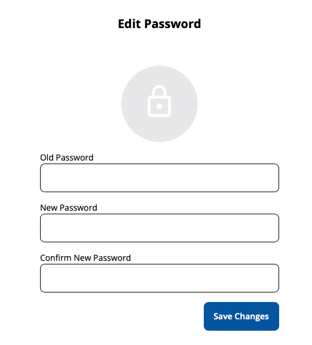
To update your password, open Settings, go to Account Information, and select Password. Enter the required password information and save the changes.
After changing your password, use the new password the next time you log in to EKO Q.
API Token Management
Use API Token Management to manage access to external data services used in EKO Q.
This section is where you can configure services such as:
Lucisun Data Service API
CAMS Data Service API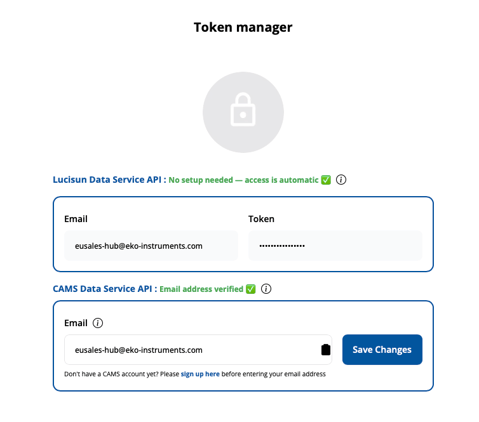
Some services may not require manual setup. For example, if access is automatic, EKO Q will show that no setup is needed.
For services that require user setup, such as CAMS Data Service API, you may need to register for the external service first and then enter the registered credentials in EKO Q.
If the CAMS status shows email address not verified, check that the email address entered in EKO Q is the same one used to register for the CAMS account.
For more details, see: Connect CAMS Data Service API to EKO Q.
Logout Account
Use Logout Account to safely sign out of EKO Q.
After logging out, you will need to sign in again before accessing your EKO Q workspace.
Troubleshooting
If you cannot edit some settings, your account may not have the required permissions. Contact your EKO Q administrator or EKO support for assistance.
For EKO Q support, contact: eko-q@eko-instruments.com
For general EKO support, contact: customersupport-eu@eko-instruments.com
If an external data service shows a verification error, check that the account has been created with the external service, the email address and other credentials are correct, and any required account verification has been completed.
Next article: Connect CAMS Data Service API to EKO Q
Go back to: Set up your EKO Q account