
Fleet Analysis performs quality checks on multiple sensors within the site. The analysis combines main tests on each sensor individually using correlative data such as provided by LuciSun, and specifically focuses on mutual agreement between irradiance data measured with the multiple sensors.
Always perform Fleet Analysis when three or more sensors with the same orientation are configured at the site.
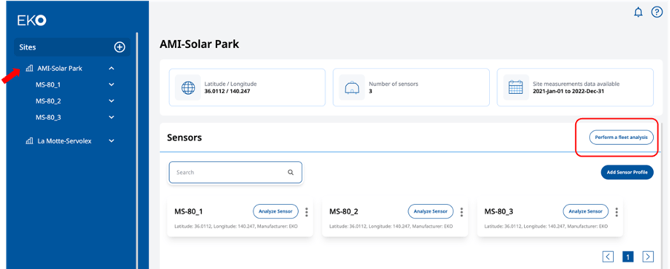
- Navigate to the site and click the Perform Fleet Analysis button on the right. Note, the button is only enabled when 3 or more sensors configured on the site.
- Preview sensor data.
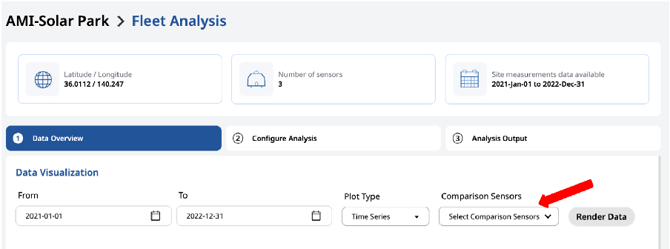
Similar to individual sensor analyses, preview the data for your fleet using Data Overview tab. Use the functionality of this tab to visualize the sensor data and make sure it meets your expectations before running the analysis.
Select sensor to visualize using Comparison Sensors list and click Render Data button next to it.
Switch between Plot Types available and see your data from different points of view.
- Configure fleet analysis parameters.
Proceed to the Configure Analysis tab.
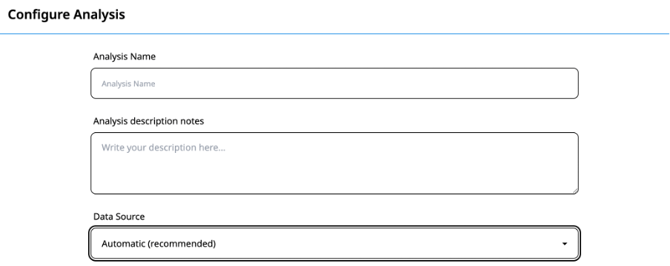
Provide Analysis Name and Description Notes (optional).
Optionally specify correlative data source to use. See Setup access to correlative data in Configure your account section to enable access to different options of correlative data.
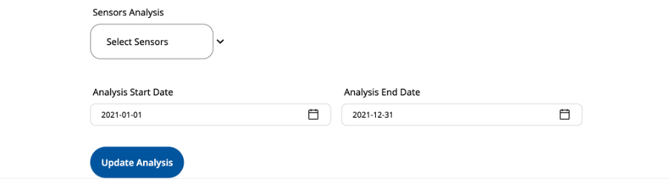
Select the sensors to analyze using Sensors Analysis list.
Specify period of analysis and click Update Analysis.
- Proceed to Analysis Output tab.
Locate your analysis and click Run ( ) button.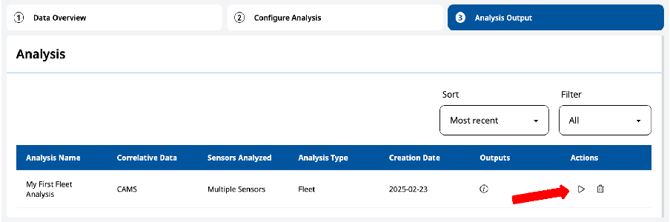
You can continue using EKO Q while the analysis runs.
Next article: See analysis report
Go back to: sensor data configuration check