

To use CAMS satellite-based irradiance data in EKO Q, you need to connect a verified CAMS account in the Token Manager. For CAMS, EKO Q only requires the email address used to register for the CAMS Radiation Service through SoDa. The registered email is used for authentication.
EKO Q automatically requests necessary data on your behalf and use them in the analyses.
Step 1: Open the Token Manager in EKO Q
Log in to EKO Q and go to the Token Manager page.
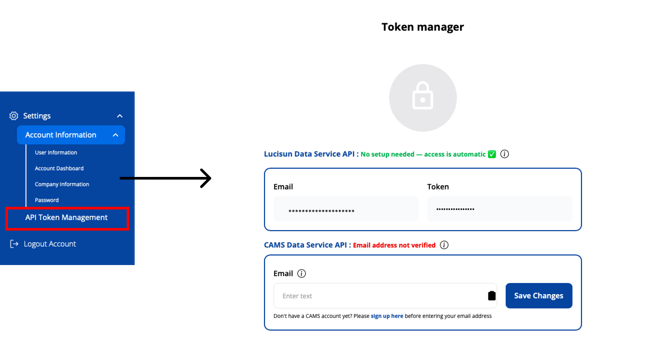
In the Token Manager, you will see the available external data services. Under CAMS Data Service API, the status may show:
Email address not verified
This means that no verified CAMS account has been connected yet.
Step 2: Create a CAMS account
Under CAMS Data Service API, click sign up here.
This will take you to the CAMS Radiation Service registration page. Create an account using the email address you want to connect to EKO Q.
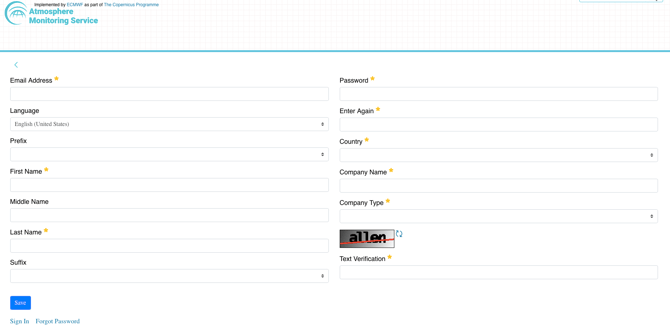
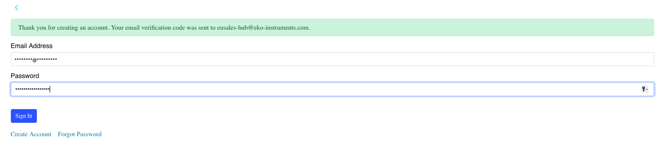
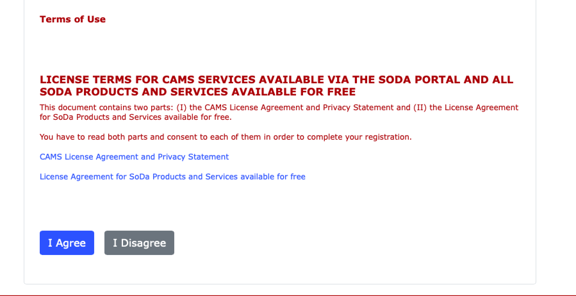
After completing the registration, check your inbox and verify your email address if required.
Step 3: Enter your CAMS email address in EKO Q
Return to the Token Manager in EKO Q.
In the CAMS Data Service API section, enter the same email address you used to create your CAMS account and click Save Changes.
Step 4: Check the connection statusAfter saving, EKO Q will check whether the email address is registered and verified.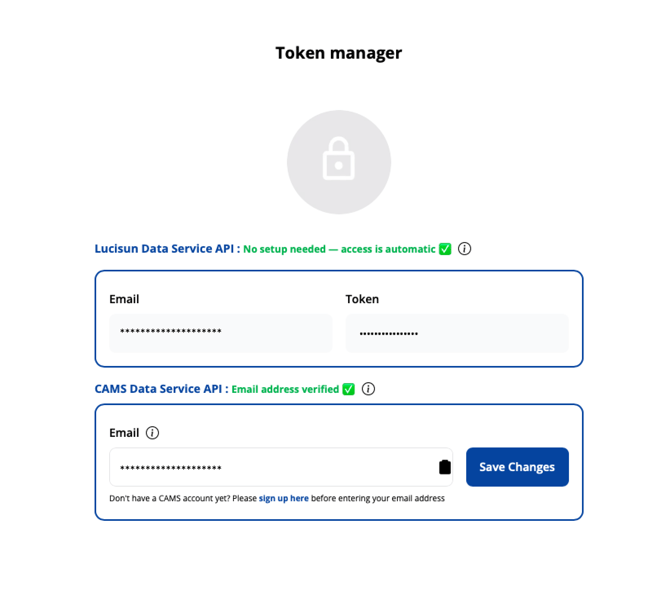
If the setup is successful, the CAMS Data Service API status will no longer show Email address not verified.
You can then use CAMS satellite-based irradiance data when configuring analyses in EKO Q.
Troubleshooting
If the status still shows Email address not verified, check that the email address was typed correctly and that it is the same email used for the CAMS registration.
Also make sure that the CAMS registration process was completed and that the email address was verified through the confirmation email.
CAMS Data Service has limitation of number of requests as part of anti-abuse protective measures. If you use the same credentials for extensive data requests, make sure you stay within the limits.
If the issue continues, wait a few minutes and try saving the email address again. Some external services may take a short time to update the account verification status.
Next article: Create and configure a site
Go back to: Manage your EKO Q account settings